

On this page
- How backups work in WhatsApp mods
- How to make a local backup in WhatsApp Plus
- Google Drive and mods: the limits
- Transfer chats from official WhatsApp to WhatsApp Plus
- Transfer chats from WhatsApp Plus back to official WhatsApp
- How to update WhatsApp Plus without losing chats
- Backup best practices
- Frequently asked questions
- Conclusion
The official WhatsApp app backs up to Google Drive automatically, so most people never think about backups. Mods are different. WhatsApp Plus, GBWhatsApp, OBWhatsApp and similar apps usually cannot use Google Drive in the same way, which means you have to take care of your chat history yourself. The same applies if you are leaving a discontinued mod such as FMWhatsApp: a local backup is your ticket out.
The good news is that local backups are straightforward once you understand where the files live. Follow the steps below and you will always have a copy of your chats to fall back on, whether you get banned, switch phones or move to another mod.

How backups work in WhatsApp mods
Every WhatsApp-based app stores your messages in an encrypted database on the phone. When you run a backup, the app writes a copy of that database, plus your media, into a folder in internal storage. On restore, the app looks for that folder during setup and offers to import the most recent file.
Official WhatsApp uses a folder named WhatsApp with a Databases subfolder for the message backups and a Media subfolder for photos, videos and voice notes. Mods either use the same structure or their own folder named after the mod (for example a GBWhatsApp folder, or an FMWhatsApp folder if you are moving away from that discontinued mod). On recent Android versions these folders usually sit under Android/media/ followed by the app's package name.
| App | Usual folder | Contains |
|---|---|---|
| Official WhatsApp | WhatsApp (in Android/media) | Databases, Media, Backups |
| WhatsApp Plus | WhatsApp or its own folder | Databases, Media |
| GBWhatsApp | GBWhatsApp folder | Databases, Media |
| OBWhatsApp | Its own folder (per OB build) | Databases, Media |
| FMWhatsApp (discontinued) | FMWhatsApp folder | Databases, Media |
| YoWhatsApp (discontinued) | YoWhatsApp folder | Databases, Media |
How to make a local backup in WhatsApp Plus
- 1Open chat backup
Go to the three-dot menu, then Settings → Chats → Chat backup.
- 2Run a backup now
Tap Back up. The app writes a fresh copy of your messages to local storage. Wait until it finishes.
- 3Include videos if needed
If your build has the option, choose whether to include videos. Leaving them out makes the backup much smaller.
- 4Check the folder
Open a file manager and find the Databases folder of the app. You should see a file with today's date or a recently updated main backup file.
- 5Copy it off the phone
Copy the whole app folder to a computer, SD card or cloud storage. A backup that only exists on the same phone does not help if the phone is lost.
Many mods, including WhatsApp Plus and GBWhatsApp, have an extra backup option in their mod settings that saves the whole app data and your mod preferences. Use it in addition to the normal chat backup for maximum safety.
Google Drive and mods: the limits
Google Drive backup is tied to the official WhatsApp app and your Google account. Most mods either hide the Drive option or show it but fail to complete the backup or restore. Even when it appears to work, you should not rely on it.
- Drive backups made by the official app cannot generally be restored directly into a mod.
- Mods may be unable to sign in to Drive because they are not recognized as the official app.
- The safest method is always a local backup copied to a place you control.
- You can still upload the backup folder to Google Drive manually as a plain file copy.
Transfer chats from official WhatsApp to WhatsApp Plus
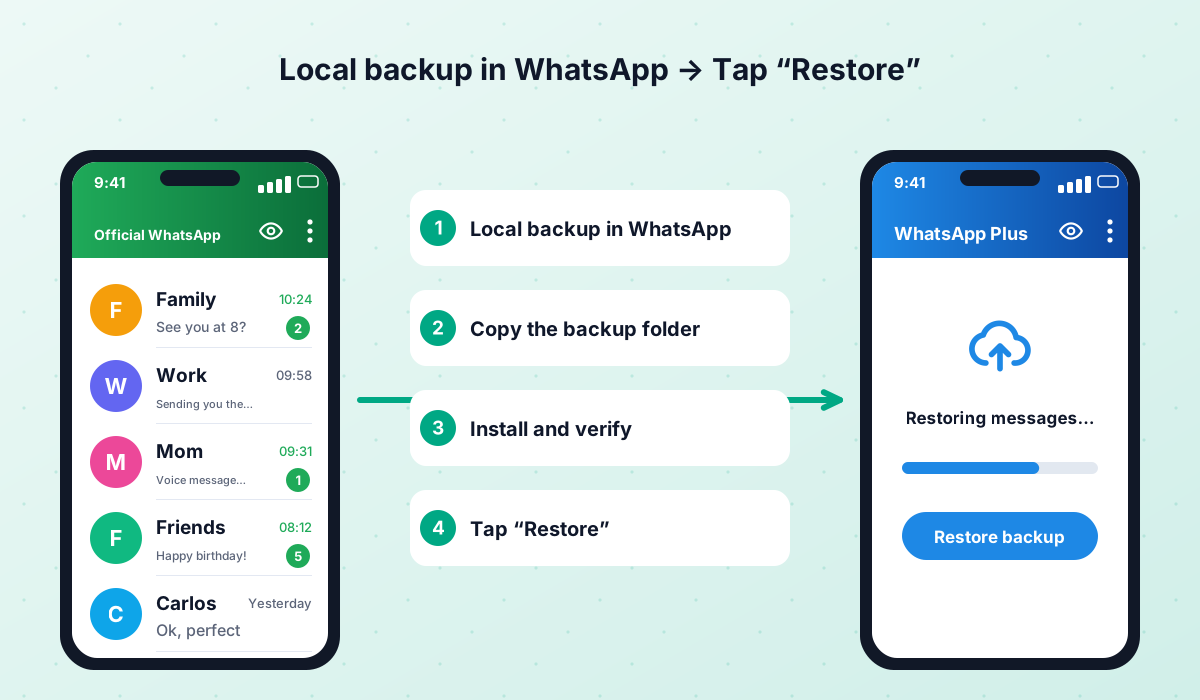
- 1Back up in official WhatsApp
Open official WhatsApp, go to Settings → Chats → Chat backup and tap Back up. This creates a local copy in the WhatsApp folder.
- 2Check the backup file
In your file manager, confirm the WhatsApp/Databases folder contains a recent file.
- 3Rename the folder if required
If the mod uses its own folder, copy or rename the WhatsApp folder to the name the mod expects (for example GBWhatsApp), including the Databases folder and its files.
- 4Uninstall official WhatsApp
Only once the backup is confirmed, uninstall the official app, or at least log it out, since the same number cannot be active in both.
- 5Install the mod
Install WhatsApp Plus or your chosen mod, allowing unknown sources temporarily.
- 6Verify and restore
Open the mod, grant storage permission, verify your number and tap Restore when it finds the backup.
Transfer chats from WhatsApp Plus back to official WhatsApp
Going back to the official app is common after a ban warning or when you simply decide mods are not worth the risk. The process is the reverse of the one above.
- In WhatsApp Plus, open Settings → Chats → Chat backup and make a fresh local backup.
- If the mod uses its own folder, copy or rename it to WhatsApp so the official app can find it.
- Uninstall the mod.
- Install official WhatsApp from Google Play.
- Open it, grant storage permission if asked, verify your number and choose Restore.
- Once your chats are back, turn on Google Drive backup in the official app for automatic protection.
Because mods are unofficial, backups made by one build are not always compatible with another app or version. Keep your old backup files until you have confirmed everything restored correctly, and never delete the original folder too early.
How to update WhatsApp Plus without losing chats
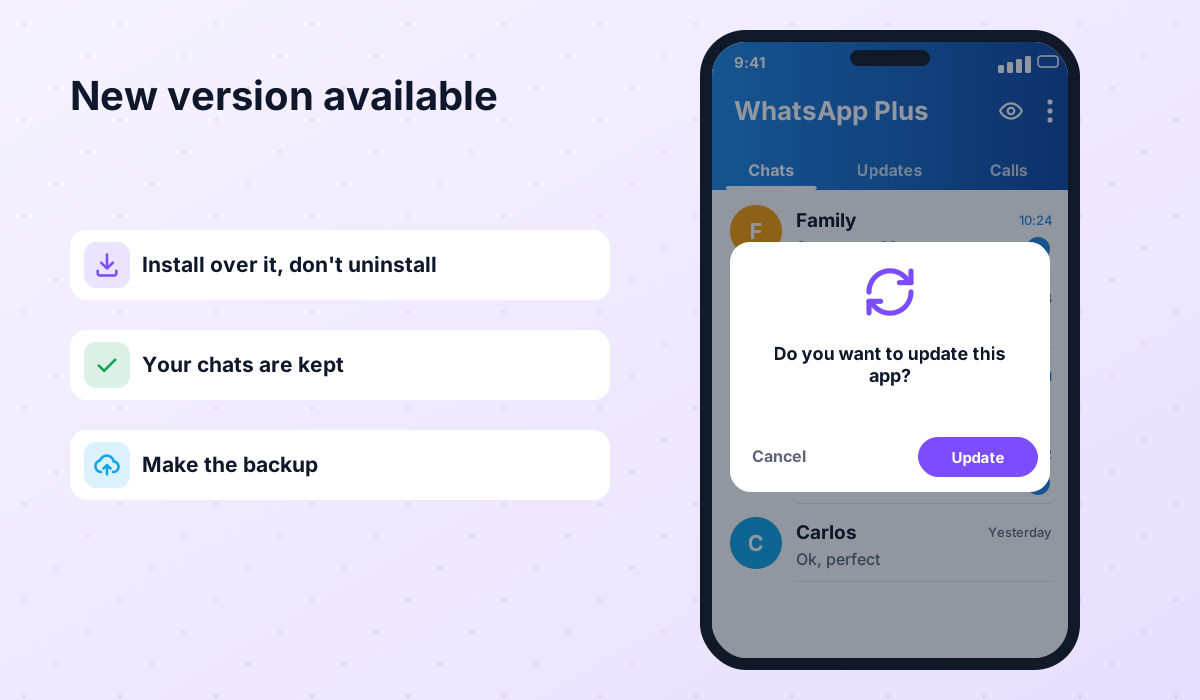
- 1Back up first
Always make a fresh local backup before updating, even though updates normally keep your data.
- 2Download the latest version
Get the newest build (currently 18.80) from a trusted source, as described in our safety guide.
- 3Install over the old version
Open the APK and tap Update or Install. Do not uninstall the old version first.
- 4Open and check
Launch the app. Your chats should appear immediately. If not, reinstall and use Restore with the backup you just made.
If the installer shows a signature conflict, the new file comes from a different developer. In that case, back up, uninstall the old app and restore after installing the new one, or better, look for the build from the same developer you already use.
Backup best practices
- Make a manual backup at least once a week, and before every update or mod switch.
- Keep at least one copy off the phone: computer, SD card or cloud storage.
- Back up your mod settings and saved theme separately (see our themes guide).
- Do not delete old backup files until you have confirmed a restore works.
- Remember that the same phone number can only be active on one primary device at a time.
Frequently asked questions
Can WhatsApp Plus back up to Google Drive?
Where is the WhatsApp Plus backup stored?
Why does the mod not find my backup?
Will I lose my chats if I update WhatsApp Plus?
Can I restore a GBWhatsApp backup in WhatsApp Plus?
Are my media files included in the backup?
 WhatsApp PlusActive v18.80The complete guide to WhatsApp Plus APK: latest version download, features, installation, updates, safety, backups and fixes for common problems.View and download →
 GBWhatsAppActive v18.80Everything about GB WhatsApp Pro: latest APK download, features, colour versions, installation, updates, safety, backups and troubleshooting.View and download →
 OBWhatsApp (Omar)Active v71OBWhatsApp by Omar Al-Annabi: numbered builds for multiple accounts, colour versions, features, install steps and safety advice.View and download →
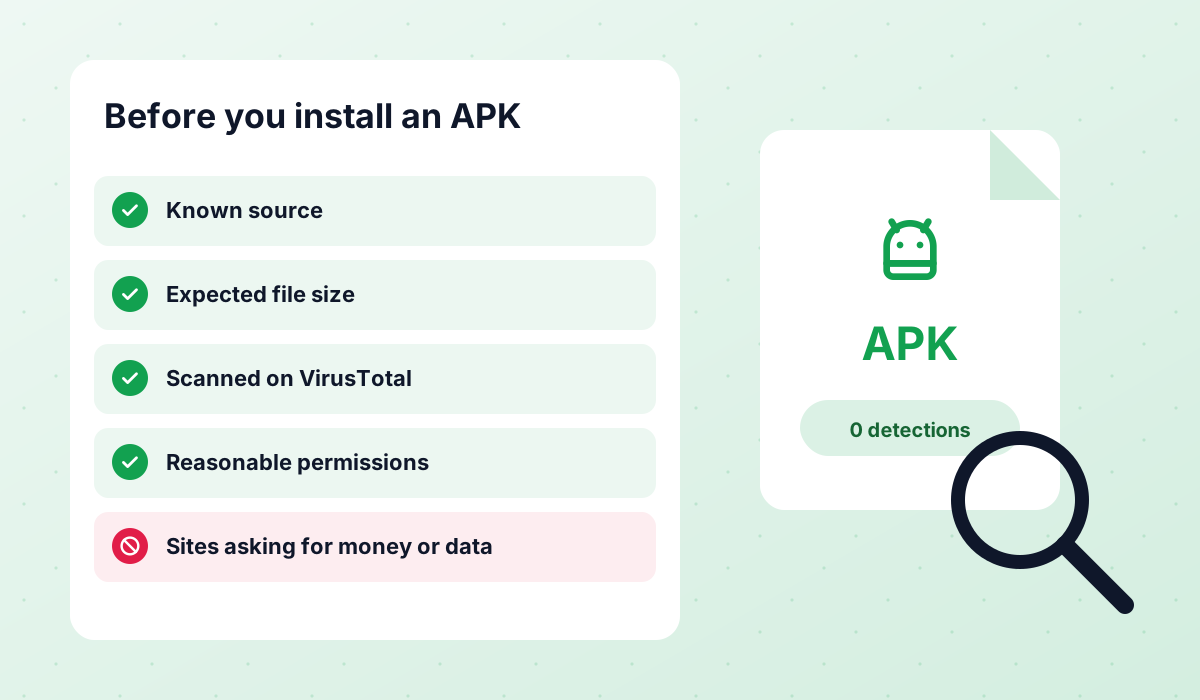 Is It Safe?An honest look at the risks of WhatsApp Plus, GBWhatsApp and discontinued mods like FMWhatsApp, how to check an APK and what to do after a ban.Read guide →
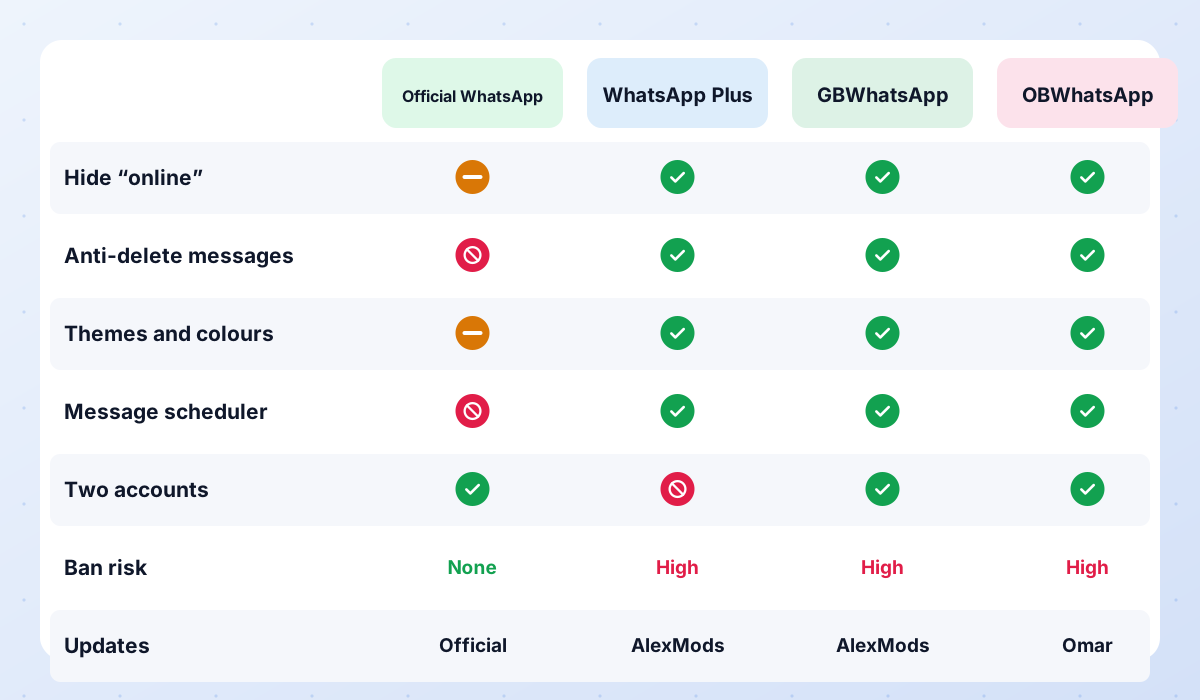 Compare ModsWhatsApp Plus vs GBWhatsApp vs OBWhatsApp side by side, a recommendation for each type of user, and the status of discontinued mods.Read guide →
 WhatsApp Plus PCRun WhatsApp Plus or GBWhatsApp on Windows or Mac through an Android emulator, with step-by-step instructions and honest limitations.Read guide →
Conclusion
With mods, backups are your responsibility. A regular local backup, copied somewhere safe, protects you from bans, broken updates and lost phones. Take a few minutes to set up the habit now, and moving between WhatsApp Plus, other mods and the official app becomes stress-free.