

On this page
- What is a WhatsApp mod theme?
- How to apply a theme from the theme store
- How to load a theme file (.xml)
- What about FM WhatsApp and YoWhatsApp themes?
- Best GB WhatsApp and WhatsApp Plus themes by style
- How to create your own theme
- Wallpapers: GB WhatsApp wallpaper and YoWhatsApp wallpaper tips
- Dark themes: what to look for
- Common theme problems and fixes
- Frequently asked questions
- Conclusion
Official WhatsApp lets you pick a light or dark mode and a chat wallpaper, and that is about it. Actively maintained mods like GBWhatsApp and WhatsApp Plus go much further: they let you restyle almost every screen, from the header and icons to bubbles, fonts and the chat list. FMWhatsApp and YoWhatsApp were once famous for their themes too, but both are now discontinued.
This guide walks you through the whole process. We cover the built-in theme store, loading theme files, creating a theme from scratch and choosing wallpapers, with practical tips on readability and battery life along the way.
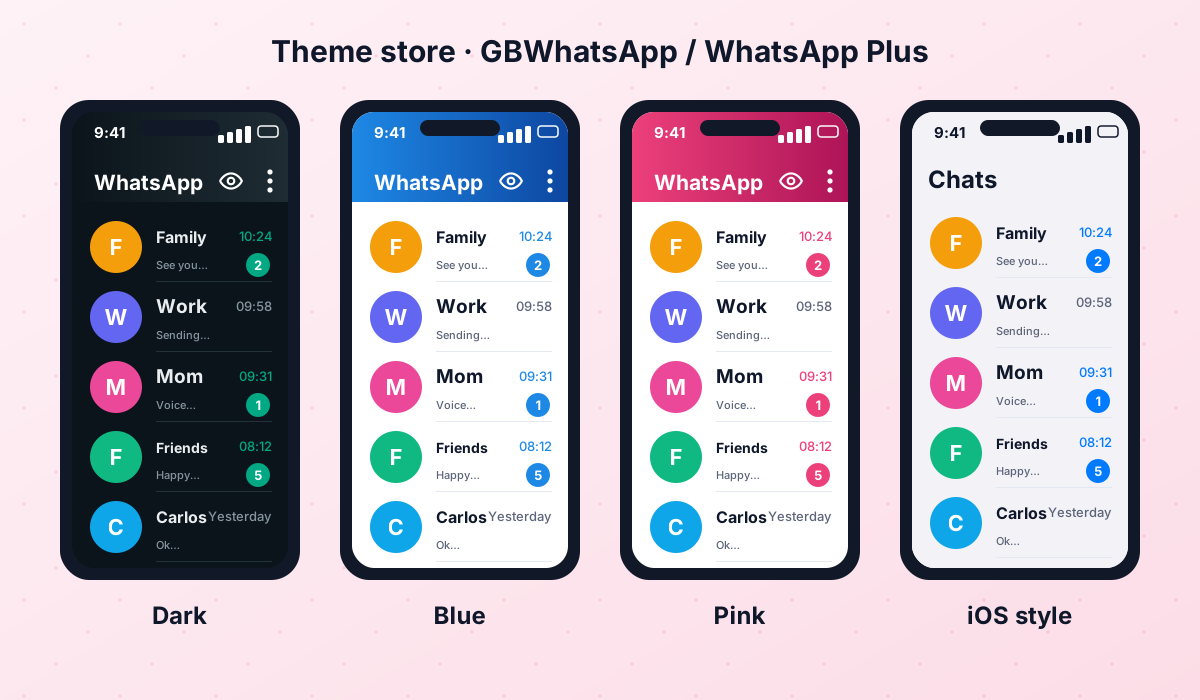
What is a WhatsApp mod theme?
A theme is a small settings file that stores colors, image references and layout options. When you apply it, the mod rewrites its interface using those values. Most mods use an XML-based format, which is why you will often see themes shared as .xml files. Some themes also include images for the background or the chat wallpaper, bundled in a zip archive.
Because GBWhatsApp, WhatsApp Plus and the now-discontinued FMWhatsApp and YoWhatsApp share a lot of code history, themes made for one often work, at least partly, on the others. You may occasionally see slightly off colors when using a theme made for a different mod, but it rarely breaks anything.
How to apply a theme from the theme store
The easiest way to change your look is the built-in theme store. It is a gallery of themes uploaded by other users that you can preview and apply in a couple of taps.
- 1Open the mod settings
Tap the three-dot menu and open the mod's own settings area. In GBWhatsApp it is usually GB Settings and in WhatsApp Plus Plus Settings. The exact name can vary slightly between builds.
- 2Enter the Themes section
Tap Themes and then Download themes or Theme store. The first load can take a few seconds.
- 3Browse or search
Sort by newest or most popular, or search for keywords such as dark, minimal, iOS or neon.
- 4Preview the theme
Open a theme to see screenshots of the chat list and conversation screen before you commit.
- 5Download and apply
Tap Download, then Apply. The app will ask to restart; accept so every screen updates.
How to load a theme file (.xml)
Sometimes you find a theme outside the store, for example shared by a friend. In that case you can load it manually. Copy the file into your phone's storage, ideally in a folder you can find easily, such as Downloads.
- Open the mod settings and go to Themes.
- Choose Load theme or Restore theme.
- Browse to the folder where you saved the .xml or .zip file and select it.
- Confirm and restart the app when prompted.
A theme file should be an .xml or .zip. Never install an APK that claims to be "just a theme": themes do not need their own app. Only load files from people or sources you trust.
What about FM WhatsApp and YoWhatsApp themes?
For years, "best FM WhatsApp themes" was one of the most popular searches in the modding world, and YoWhatsApp had its own loyal theme community. Both apps are now discontinued: no new builds have appeared since version 10.10, so we no longer recommend installing them. The good news is that the themes themselves were just files. If you saved your favourite looks as .xml or .zip files, you can try loading them in GBWhatsApp or WhatsApp Plus using the steps above.
Expect small differences: a theme made for FMWhatsApp may show a few colours in the wrong place or miss an icon, and you can fix those by hand under Universal and Conversation screen. If you are still using FMWhatsApp or YoWhatsApp, save your theme before you switch, then follow our backup guide to move your chats.
Best GB WhatsApp and WhatsApp Plus themes by style
Rather than listing specific themes that may disappear from the store tomorrow, here are the styles that stay popular year after year, with what to look for in each.
True black backgrounds with gray or colored bubbles. Great at night and on OLED screens.
Bottom navigation, rounded bubbles and blue accents that mimic an iPhone. WhatsApp Aero used to do this by default, but it has been withdrawn, so a theme is now the way to get this look.
Flat colors, no busy backgrounds and clean fonts. Easy on the eyes and quick to load.
Dark backgrounds with bright pink, cyan or green accents. Eye-catching, but choose one with good text contrast.
Drawn characters or landscapes as backgrounds. Look for versions with a dimmed overlay so text stays readable.
Some themes change the typeface. Rounded fonts feel friendly, condensed fonts fit more text on screen.
How to create your own theme
If none of the store themes feels right, building your own is surprisingly quick. You start from the current look and change elements one by one, then save the result as a theme file you can reuse or share.
- 1Start from a clean base
Reset to the default theme or apply a simple one you like. It is easier to adjust a clean design than a busy one.
- 2Set the main colors
Go to Universal → Colors and choose the primary color, accent color, status bar and navigation bar.
- 3Style the chat list
In Home screen settings, adjust the header, row background, names and message preview colors.
- 4Style the conversation screen
Under Conversation screen, set bubble styles, bubble colors, text colors and the input bar.
- 5Pick a font and icons
Choose a font from the Universal section and, if your build supports it, a different icon pack or tick style.
- 6Save your theme
Use Save theme to export it. Keep a copy in cloud storage so you can restore it after reinstalling the app.
Wallpapers: GB WhatsApp wallpaper and YoWhatsApp wallpaper tips
The wallpaper is the part of the design you will look at the most, so it deserves some thought. Searches like "GB WhatsApp wallpaper" and "Yo WhatsApp wallpaper download" are very common, but you do not need a special pack: any image in your gallery can be used.
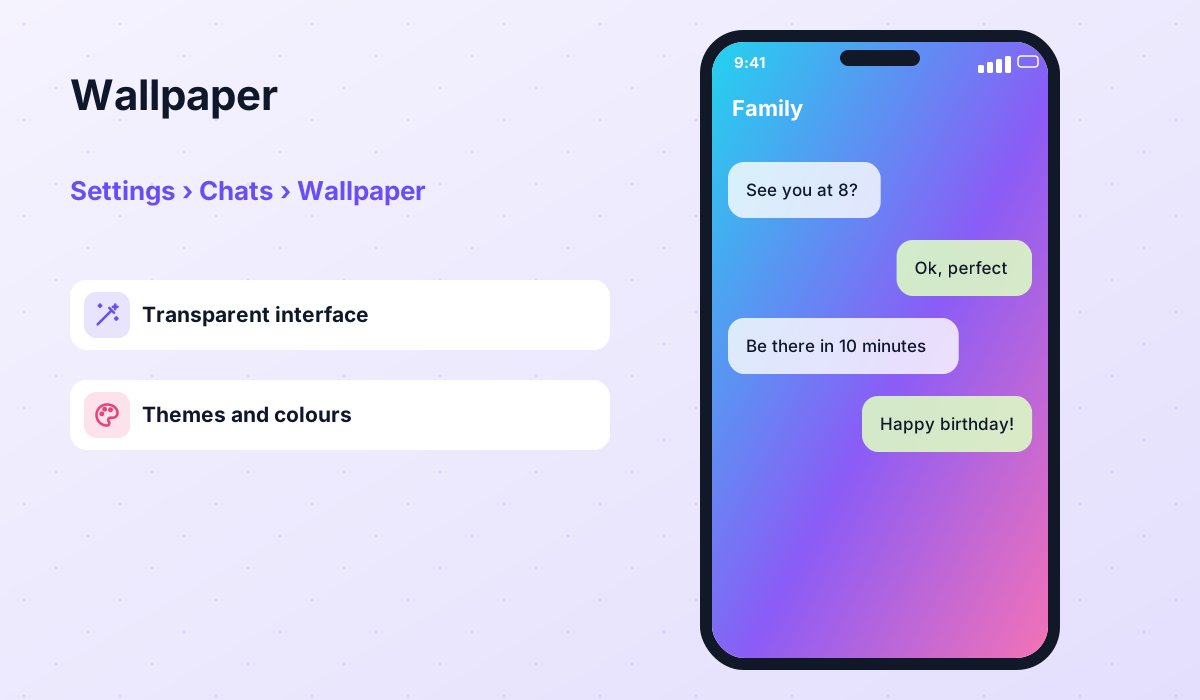
- Use the right resolution: pick an image at least as tall as your screen so it does not look blurry when stretched.
- Prefer calm images: gradients, blurred photos and simple patterns work much better than detailed scenes.
- Dim it: most mods let you add a dark overlay to the wallpaper; a little dimming dramatically improves readability.
- Set per-chat wallpapers: you can give important chats their own background so you instantly know where you are.
- Fake a see-through look: dedicated transparent builds are no longer maintained (see our WhatsApp Transparent status page), but using the same image as your home screen and chat wallpaper gives a similar effect.
Dark themes: what to look for
Dark themes are the most downloaded category in every theme store. A good dark theme uses real black or very dark gray, keeps text at a comfortable light gray rather than pure white and uses accent colors sparingly. Poor ones use dark blue text on black, which is almost impossible to read.
If you like the idea of a dark app but want the color of your choice, our WhatsApp Plus colors guide shows how to combine a dark background with blue, pink, purple or gold accents.
Common theme problems and fixes
| Problem | Likely cause | Fix |
|---|---|---|
| Theme looks half-applied | App not restarted | Force close the app and reopen it |
| Text is unreadable | Low contrast colors | Change text color under Conversation screen |
| Theme store will not load | Outdated build or network issue | Update the mod and try on Wi-Fi |
| Theme lost after update | Settings reset | Load your saved theme file |
| Colors wrong on another mod | Theme made for a different mod | Adjust colors manually in Universal |
Themes are purely cosmetic. Whatever look you choose, these mods remain unofficial, are not affiliated with WhatsApp LLC or Meta, and can lead to account bans. Read our safety guide and keep a backup of your chats.
Frequently asked questions
Can I use my old FMWhatsApp themes in GBWhatsApp?
Where are theme files saved on my phone?
Do themes slow down the app?
Is it safe to download themes from websites?
How do I go back to the default look?
Does official WhatsApp support themes?
 GBWhatsAppActive v18.80Everything about GB WhatsApp Pro: latest APK download, features, colour versions, installation, updates, safety, backups and troubleshooting.View and download →
 WhatsApp PlusActive v18.80The complete guide to WhatsApp Plus APK: latest version download, features, installation, updates, safety, backups and fixes for common problems.View and download →
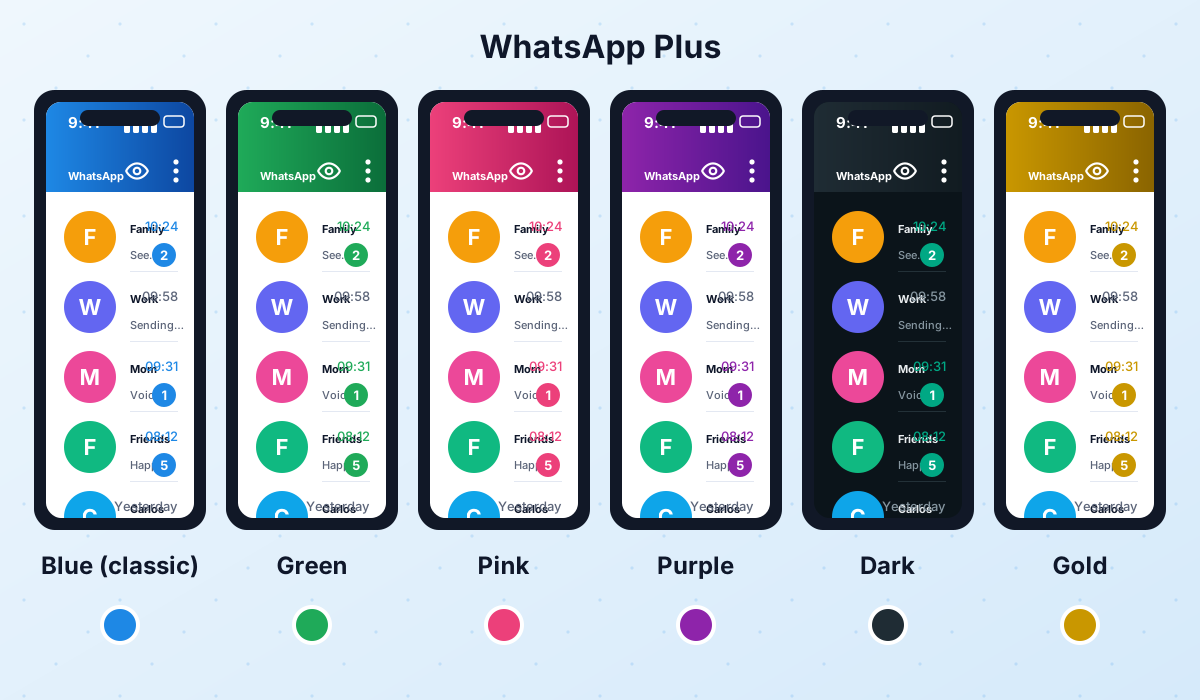 WhatsApp Plus ColorsThe blue classic, green, pink, purple, dark and gold versions of WhatsApp Plus explained, plus how to change colors from Plus settings.Read guide →
 Backup & RestoreLocal backups, restoring chats, transferring between mods and official WhatsApp, and updating without losing your history.Read guide →
 FMWhatsAppDiscontinued v10.10FMWhatsApp is discontinued: no new builds from Fouad Mods since 10.10. Status, risks of fake APKs and the best active alternatives.View and download →
 YoWhatsAppDiscontinued v10.10YoWhatsApp (YoWA) is discontinued at 10.10. What happened, why new APKs are risky and which active mods to use instead.View and download →
Conclusion
Themes and wallpapers are the fun side of WhatsApp mods. Start with the theme store, save anything you like, and do not be afraid to build your own design from a simple base. Just keep in mind that no theme changes the underlying risks, so stay on a trusted build, update regularly and back up your chats before experimenting.