

On this page
- What is WhatsApp Plus linked mode?
- Linked vs unlinked: which mode should you use?
- Requirements
- How to set up WhatsApp Plus in linked mode
- Limits of linked mode and the 14-day rule
- Ban risk in linked mode: an honest explanation
- Latest builds from other developers
- How to unlink WhatsApp Plus and go back to only official WhatsApp
- Linked mode, the full mod or the official subscription?
- Frequently asked questions about WhatsApp Plus linked mode
For a long time, using WhatsApp Plus meant a hard choice: either you registered your number in the mod and accepted the ban risk, or you stayed with the official app and gave up the extra features. Linked mode changes that. Your account stays in official WhatsApp, and WhatsApp Plus connects to it as a companion device, the same way WhatsApp Web or a tablet does.
In this guide we explain how linked mode works, how it differs from a classic “unlinked” installation, what you need, how to set it up step by step, what it cannot do, and how much it really reduces the risk of a ban. You will also find the latest WhatsApp Plus builds from other developers that our editor has checked, plus a checklist to verify any APK before installing it.

Linked mode lets you keep official WhatsApp and use WhatsApp Plus at the same time, with a lower (not zero) ban risk, as long as your main phone comes online at least once every 14 days.
What is WhatsApp Plus linked mode?
Official WhatsApp supports linked devices. One account can be used on up to 4 linked devices at the same time, such as a computer, a tablet or a second phone. Linked devices keep working even when the main phone is offline, but if the main phone is not used for 14 days, they are logged out automatically. A second phone can join as a companion by scanning a QR code from Settings → Linked devices on the main phone.
Many recent WhatsApp Plus builds take advantage of this with an option called “Link as companion device”. Instead of registering your number with an SMS code, the mod connects to the account that already lives in the official app on your main phone. WhatsApp Plus then runs on another phone as a linked device and shows your chats with its own extras on top: themes, privacy options, anti-delete and so on, depending on the build.
Some builds can even run on the same phone as official WhatsApp. This works when the build uses a different package name, so Android treats it as a separate app, and offers linking with a code instead of a QR scan (you cannot scan a QR code shown on your own screen). Either way, the idea is the same: you “have both”, official WhatsApp and Plus features, without moving your account out of the official app.
Linked vs unlinked: which mode should you use?
The alternative to linked mode is the classic installation, sometimes called “unlinked” or primary mode, where you register your number directly in WhatsApp Plus with a verification code. This is how mods have always worked, and it is still what most WhatsApp Plus guides describe. The table compares both approaches:
| Aspect | Linked (companion device) | Unlinked (primary registration) |
|---|---|---|
| Where your number is registered | Official WhatsApp on the main phone | Directly in WhatsApp Plus |
| Official WhatsApp kept | ✔ | ✘ (same number cannot be primary in both) |
| Ban risk | Lower, but not zero | Higher |
| Google Drive / iCloud backups | ✔ In the official app | ✘ Local backups only in most builds |
| Verification SMS needed | ✘ QR code or link code | ✔ |
| Post status updates | Not in some builds | ✔ |
| Share live location | Not in some builds | ✔ |
| Broadcast lists | Not in some builds | ✔ |
| Mod features | Only on the linked device | On the whole account |
| Chat history | Synced, may be partial | Full, from your backup |
| Main phone must be online every 14 days | ✔ | ✘ |
| Official updates and support | ✔ For the main app | ✘ |
| Easy to undo | ✔ Log out the device | Requires a backup and reinstall |
If your WhatsApp account matters for work, family or verification codes, linked mode is the more cautious choice because the account never leaves the official app. The unlinked mode gives you every mod feature on the whole account, but the full ban risk comes with it. Our main WhatsApp Plus APK guide covers the classic installation in detail.
Requirements
Before you start, make sure you have everything ready. Linked mode is simple, but a missing piece usually means the pairing fails halfway.
- Official WhatsApp installed, updated and registered with your number on the main phone.
- A WhatsApp Plus build that supports linked mode, meaning it shows a “Link as companion device” option on its first screen.
- A second Android phone, or the same phone if the build uses a different package name and supports linking with a code.
- A free linked-device slot: each account can have up to 4 linked devices, so log out one you no longer use if you are at the limit.
- A stable Wi-Fi connection on both phones for the first sync.
- A recent backup in official WhatsApp, just in case. See our WhatsApp backup guide.
How to set up WhatsApp Plus in linked mode
The exact wording varies slightly between builds, but the process is almost always the same:
- 1Keep official WhatsApp on the main phone
Update official WhatsApp from Google Play or the App Store and make sure your number is working normally there. Do not uninstall it: it remains the primary device.
- 2Install the WhatsApp Plus build
On the second phone (or on the same phone, if the build allows it), install the linked-mode WhatsApp Plus APK after checking it with the list further down this page.
- 3Choose “Link as companion device”
Open WhatsApp Plus. On the welcome screen, do not tap “Agree and continue”, which starts a normal registration. Instead, open the menu or option labelled “Link as companion device”. A QR code or a pairing code appears.
- 4Link it from official WhatsApp
On the main phone, open WhatsApp → Settings → Linked devices → Link a device. Scan the QR code shown by WhatsApp Plus, or choose to link with a phone number and enter the code if you are on the same phone.
- 5Wait for the sync
Keep both phones on Wi-Fi and wait while your chats appear. Recent conversations come first; older messages and media may take longer or may not all be synced.
- 6Set up the Plus features
Once your chats are visible, open the Plus settings to choose a theme and configure the privacy options. Remember they only apply on this linked device.
- 7Open the main phone regularly
Use official WhatsApp on the main phone at least once every 14 days. If you do not, all linked devices, including WhatsApp Plus, are logged out.
If the pairing fails, log out one of your existing linked devices, restart both apps and try again on Wi-Fi. If the build shows no “Link as companion device” option at all, it does not support linked mode; do not register your number in it by mistake.
Limits of linked mode and the 14-day rule
Linked mode is convenient, but a companion device is not a full WhatsApp installation. WhatsApp restricts some actions to the primary phone, and mod builds inherit those limits. Before you rely on it every day, keep these points in mind:
- The 14-day rule: if the main phone is not used for 14 days, every linked device is logged out and you have to link WhatsApp Plus again.
- Missing actions: some builds cannot post status updates, share live location or use broadcast lists from the companion side.
- Mod features are local: anti-delete, hidden ticks and themes only work in WhatsApp Plus on the linked device, not in the official app on the main phone.
- Partial history: the chat history synced to the companion may be incomplete, especially older media.
- Four-device limit: WhatsApp Plus uses one of the 4 linked-device slots your account has.
- Backups stay official: your backup is made by the official app on the main phone, which is an advantage, but the mod itself does not keep a separate full backup.
For most people these limits are acceptable, because the main reason to use linked mode is to keep the official app as the “home” of the account. If you need every feature everywhere, you would have to register the number in the mod, and that brings back the full ban risk.
Ban risk in linked mode: an honest explanation
Linked mode is popular because it lowers the risk, and that part is true: your number is registered in the official app, you keep official backups and updates, and if something goes wrong you can simply log out the linked device. The account is not sitting inside a modified client that WhatsApp can inspect during registration.
But lower is not the same as zero. The WhatsApp Plus build is still an unofficial client talking to WhatsApp's servers, and WhatsApp's terms do not allow modified apps. WhatsApp can detect unusual companion clients, and a warning, a forced logout or even a restriction on the account remains possible. Nobody can honestly promise that a linked build is ban-proof.
Do not use linked mode on an account you cannot afford to lose. Keep an up-to-date backup in official WhatsApp, use a build you have checked, and log out the linked device immediately if WhatsApp shows any warning. Read our WhatsApp mod safety guide for the full picture.
Latest builds from other developers
Besides the classic WhatsApp Plus by AlexMods, lesser-known developers frequently publish new WhatsApp Plus builds that work in linked mode. In 2026, names such as Delta, YesiiMods (Ultra), VCTM and RS GB appeared on Spanish-language sites. The list below shows the builds our editor has checked, with the developer, version, date and whether each one runs in linked or primary mode. We update it as new builds appear.
- Linked mode
- vV3.7.4.90
- September 30, 2026
- Reviewed
- Linked mode
- vV9.36
- September 30, 2026
- Reviewed
- Linked mode
- vV5.60
- September 30, 2026
- Reviewed
Builds from independent developers, published as their authors distribute them. They are not official, can lead to bans and should be scanned before installing.
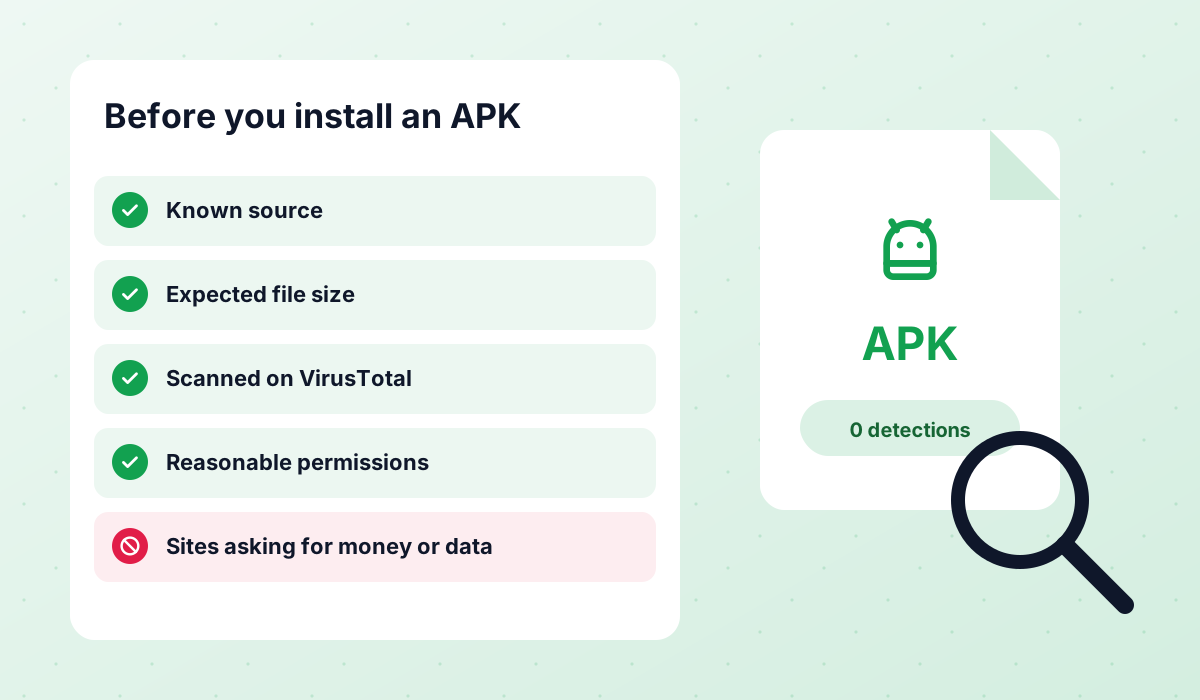
A build from a developer with no track record carries a higher risk of malware, data collection or simply broken code. Even when we list a build, check the file yourself before installing it, and never use a build that asks you to log in or pay somewhere outside the app.
How to check an APK before installing it
- Size: compare the file size with the one listed for the build. A file that is much smaller or larger than expected has probably been modified.
- VirusTotal: upload the APK to VirusTotal and review the results. One or two generic flags are common for mods; several named detections are a red flag.
- Permissions: after installing, check the permissions in Android settings. A messaging app has no reason to request accessibility services or device administrator rights.
- Source: download only from the developer's own channel or a page you trust, never from pop-ups, short links or files sent in chats.
- Name and version: be suspicious of builds that promise impossible version numbers or “official” status. No WhatsApp Plus mod is official.
- Test first: if possible, try a new build on a secondary phone before you link it to your main account.
How to unlink WhatsApp Plus and go back to only official WhatsApp
One of the best things about linked mode is how easy it is to undo. Since your account never left official WhatsApp, going back takes a minute and you do not need to restore anything:
- 1Save what you need
If you downloaded statuses or media inside WhatsApp Plus that you want to keep, copy them to your gallery or computer first.
- 2Log out the linked device
On the main phone, open WhatsApp → Settings → Linked devices, tap the WhatsApp Plus device and choose Log out.
- 3Uninstall the build
On the phone where WhatsApp Plus was installed, uninstall the app from Android settings.
- 4Check your devices
Go back to Linked devices on the main phone and make sure no unknown sessions remain. Log out anything you do not recognise.
- 5Keep using official WhatsApp
Your chats and backups are still in the official app, so there is nothing to restore. If you want a new look, the free app has 38 chat theme colours, and Meta's optional subscription adds more.
Linked mode, the full mod or the official subscription?
Linked mode sits in the middle of the options available today. If you want every mod feature on the whole account and accept the risk, the classic WhatsApp Plus APK or GBWhatsApp installed in primary mode is the way. If you only want more colours, app icons and pinned chats with no risk at all, Meta's official WhatsApp Plus subscription is enough. Linked mode is for people who want mod features while keeping official WhatsApp as the home of their account.
Whichever you choose, keep regular backups; our backup and restore guide explains how. For the official side of linked devices, the WhatsApp Help Center describes how linking, logging out and the 14-day rule work.
Frequently asked questions about WhatsApp Plus linked mode
What does “Link as companion device” mean in WhatsApp Plus?
Can I use official WhatsApp and WhatsApp Plus at the same time?
Is WhatsApp Plus linked mode safe from bans?
Why was WhatsApp Plus logged out on my linked phone?
Why can't I post a status from WhatsApp Plus in linked mode?
What is the difference between linked and unlinked WhatsApp Plus?
Will I lose my chats if I unlink WhatsApp Plus?
 WhatsApp PlusActive v18.80The complete guide to WhatsApp Plus APK: latest version download, features, installation, updates, safety, backups and fixes for common problems.View and download →
 GBWhatsAppActive v18.80Everything about GB WhatsApp Pro: latest APK download, features, colour versions, installation, updates, safety, backups and troubleshooting.View and download →
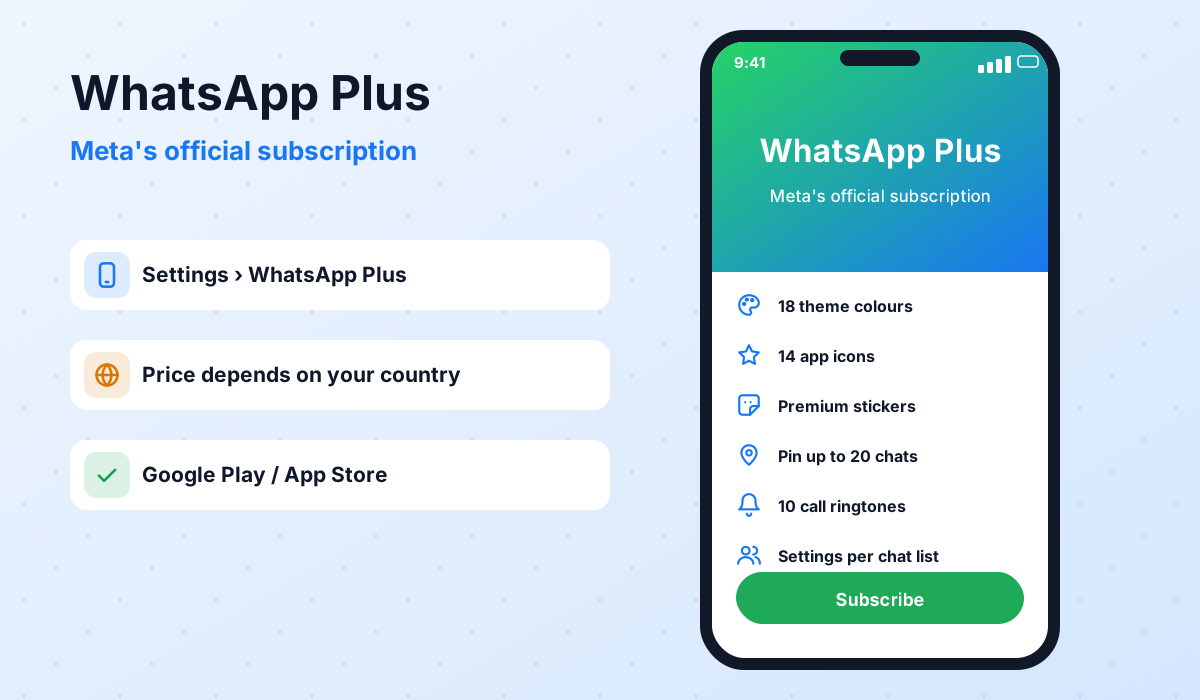 Official WhatsApp PlusEverything about Meta's official WhatsApp Plus subscription: prices, features, how to subscribe and cancel, and how it compares with the WhatsApp Plus mod.Read guide →Is It Safe?An honest look at the risks of WhatsApp Plus, GBWhatsApp and discontinued mods like FMWhatsApp, how to check an APK and what to do after a ban.Read guide →
 Backup & RestoreLocal backups, restoring chats, transferring between mods and official WhatsApp, and updating without losing your history.Read guide →